

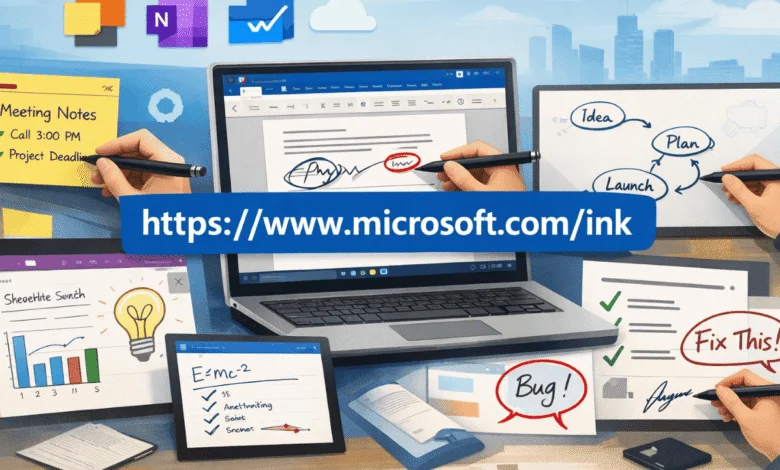
Windows Ink Explained: What “microsoft.com/ink” Actually Means
Okay, so. You typed microsoft.com/ink into a search bar or an address bar, expecting some clean, official Microsoft page to load up. And instead you got… nothing, really. Or worse, some random blog that sounds like it was written by a robot having an identity crisis. Been there.
Here’s the truth: there isn’t one tidy, official landing page at that exact URL. I looked. A handful of low-effort content sites have basically built pages just to catch people searching that specific string. Kind of sneaky, honestly. What you actually want is something called Windows Ink, and it’s way more useful than a webpage anyway.
So What Is Windows Ink, Really?
Windows Ink is a feature built right into Windows 10 and Windows 11. Not an app you download. Not a subscription. It’s just… there, quietly running, waiting for you to plug in a pen.
Think of it as the invisible plumbing that lets your stylus actually feel like a pen instead of a clunky mouse substitute. It handles the pressure sensitivity, the palm rejection (so your hand resting on the screen doesn’t smear ink everywhere — genuinely a lifesaver), and the handwriting-to-text conversion.
I’ll be honest, the first time I used a pen on a Surface a few years back, I didn’t get it. Felt gimmicky. Then I started using it for actual notes during meetings, and something clicked. Handwriting just… sticks in my brain better than typing does. There’s research backing that up too, not just my vibes — handwriting is linked to better memory retention than typing.
A Quick History Lesson (I Promise It’s Short)
Windows Ink showed up in 2016, with the Windows 10 Anniversary Update. Microsoft announced it earlier that year at their Build developer conference.
Back then, you accessed it through something called the Windows Ink Workspace. It was this whole taskbar panel — Sticky Notes, Sketchpad, Screen Sketch, all sitting there waiting for you to click.
Windows 11 simplified things. The big panel got swapped for a smaller pen menu icon in the taskbar. Same underlying tech, just a leaner way to get to it. Honestly? Good change. The old workspace felt a little bloated.
What Can You Actually Do With It?
Quite a lot, honestly. Let me break it down.
Palm rejection. Your hand rests on the screen while you write, and the system just… knows to ignore it. Small thing, but it makes writing feel natural instead of fighting the tech.
Handwriting recognition. Scribble a note in OneNote and later search for it using typed text. It finds your handwriting. Every time I explain this to someone, they get a little “wait, really?” look on their face. It’s a good feature.
Screen Sketch. Snap a screenshot, draw all over it — circles, arrows, angry red scribbles if a design needs work — then send it off. Way faster than opening a separate editor.
App integration. Word, Excel, PowerPoint, OneNote, even Edge — they all let you mark things up by hand. Sketch a route in Windows Maps too, if you’re feeling old-school.
Pen button shortcuts. Most compatible pens have a clickable end. Set it up how you like: single click opens OneNote, double click grabs a screenshot, whatever fits your workflow.
How Do You Find It?
Look for a small pen icon in your taskbar if you’re on Windows 11. On Windows 10, it’s the Ink Workspace icon. Don’t see it? Right-click the taskbar and turn it on manually — took me an embarrassingly long time to figure that out the first time.
Got a compatible pen? Sometimes just tapping the button on it pulls the whole thing up. No hunting required.
One more tip, and this one’s underrated: go into Settings > Bluetooth & devices > Pen & Windows Ink and adjust the pressure sensitivity. Calibrate it to how hard you naturally press when writing. Sounds minor. Makes a real difference in how natural your handwriting looks on screen.
Where This Shows Up in Real Life
OneNote is the MVP here. Full notebooks, searchable handwriting, syncing across devices. If you’re a student drowning in lecture notes, this is genuinely worth trying.
Microsoft Whiteboard is great for group brainstorming, especially on a touchscreen in a meeting room. Beats passing around one notebook and hoping everyone can read your handwriting (mine’s rough, not gonna lie).
Snipping Tool and Screen Sketch are perfect for quick feedback. See a typo in a document? Screenshot it, circle it, send it. Done in ten seconds.
Third-party apps lean on the same underlying platform too. Nebo is known for turning messy handwriting into clean, formatted text — even recognizes lists and paragraphs. Clip Studio Paint uses the same pressure sensitivity for digital art and comics. Different apps, same solid foundation underneath.
Is It Actually Worth Using?
Depends on your setup, honestly. Got a 2-in-1 laptop or a Surface with a pen? Then yeah, Windows Ink is just sitting there, ready to go, completely free. No excuse not to try it.
No pen, no touchscreen? Then this whole feature is basically invisible to you. Mouse and keyboard don’t unlock the pressure sensitivity or palm rejection that make Ink genuinely good. That’s just how it is.
Wrapping This Up
So, if you searched microsoft.com/ink hoping for some official Microsoft page — sorry, it’s not really a thing in the way you’d expect. What actually exists is Windows Ink, a built-in feature already humming along in the background of your PC.
Go find the pen icon in your taskbar. Grab a compatible stylus if you’ve got one. And honestly? Give OneNote a shot with it. In my experience, it’s one of those features you don’t think you need until you try it — and then you kind of can’t imagine going back.
Internal linking suggestions: link “OneNote” and “Microsoft Whiteboard” to their official product pages, link “Settings > Bluetooth & devices > Pen & Windows Ink” to a related how-to guide, and consider a companion post comparing Nebo vs. OneNote for handwriting accuracy.









Leave a Reply